
Install Ivanti Xtraction with IIS, SQL and AD Authentication
Install Ivanti Xtraction – This guide explains how to install Ivanti Xtraction by preparing IIS prerequisites, creating the SQL database, installing licenses and the data model, configuring the LDMS data source, and enabling Active Directory authentication.
Sources
- Download Xtraction: lien
- Licence xtraction (Contact IVANTI)
- Data model Datamodele LDMS 2016
Prerequisites Windows
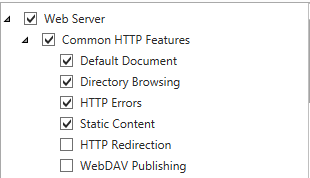
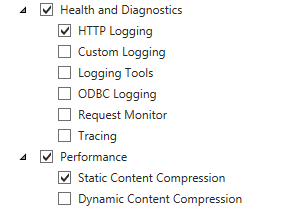
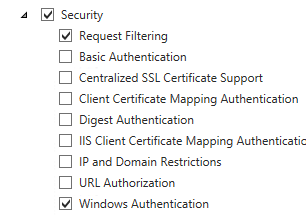
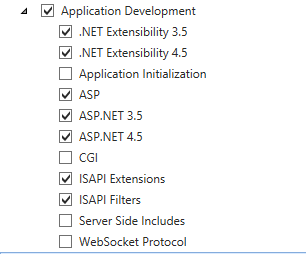
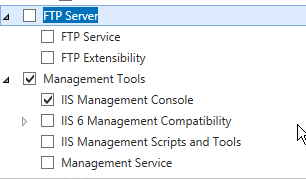
Install Ivanti Xtraction – Install the following IIS components
Set cmddism=dism
Set cmdwusa=wusa
Set cmdpowershell=powershell
Set cmdreg=reg
Set cmdpowercfg=powercfg
Set cmdcscript=cscript
Set cmdNet=net
if defined PROCESSOR_ARCHITEW6432 Set cmddism=%SystemRoot%\Sysnative\cmd.exe /c Dism
if defined PROCESSOR_ARCHITEW6432 Set cmdpowershell=%SystemRoot%\sysnative\WindowsPowerShell\v1.0\powershell.exe
if defined PROCESSOR_ARCHITEW6432 Set cmdwusa=%SystemRoot%\sysnative\wusa.exe
if defined PROCESSOR_ARCHITEW6432 Set cmdreg=%SystemRoot%\sysnative\reg.exe
if defined PROCESSOR_ARCHITEW6432 Set cmdpowercfg=%SystemRoot%\Sysnative\cmd.exe /c powercfg
if defined PROCESSOR_ARCHITEW6432 Set cmdcscript=%SystemRoot%\Sysnative\cscript.exe
if defined PROCESSOR_ARCHITEW6432 Set cmdNet=%SystemRoot%\Sysnative\cmd.exe /c net

:: Enabling IIS:
%cmddism% /online /Enable-Feature /FeatureName:IIS-WebServerRole /NoRestart /All
%cmddism% /online /Enable-Feature /FeatureName:IIS-WebServerManagementTools /NoRestart /All
%cmddism% /online /Enable-Feature /FeatureName:IIS-NetFxExtensibility /NoRestart /All
%cmddism% /online /Enable-Feature /FeatureName:IIS-ISAPIExtensions /NoRestart /All
%cmddism% /online /Enable-Feature /FeatureName:IIS-ASP /NoRestart /All
%cmddism% /online /Enable-Feature /FeatureName:IIS-ISAPIFilter /NoRestart /All
%cmddism% /online /Enable-Feature /FeatureName:IIS-ASPNET /NoRestart /All
%cmddism% /online /Enable-Feature /FeatureName:IIS-CGI /NoRestart /All
%cmddism% /online /Enable-Feature /FeatureName:IIS-ServerSideIncludes /NoRestart /All
%cmddism% /online /Enable-Feature /FeatureName:IIS-HttpRedirect /NoRestart /All
%cmddism% /online /Enable-Feature /FeatureName:IIS-WebDAV /NoRestart /All
%cmddism% /online /Enable-Feature /FeatureName:IIS-BasicAuthentication /NoRestart /All
%cmddism% /online /Enable-Feature /FeatureName:IIS-ClientCertificateMappingAuthentication /NoRestart /All
%cmddism% /online /Enable-Feature /FeatureName:IIS-WindowsAuthentication /NoRestart /All
- Common HTTP Features
- Static Content
- Default Document
- HTTP Errors
- Application Development
- NET
- NET Extensibility
- ISAPI Extensions
- ISAPI Filters
- Health and Diagnostics
- HTTP Logging
- Security
- Windows Authentication (if using AD)
- Management Tools
- IIS Management Console
Install xtraction
Fix installation sources
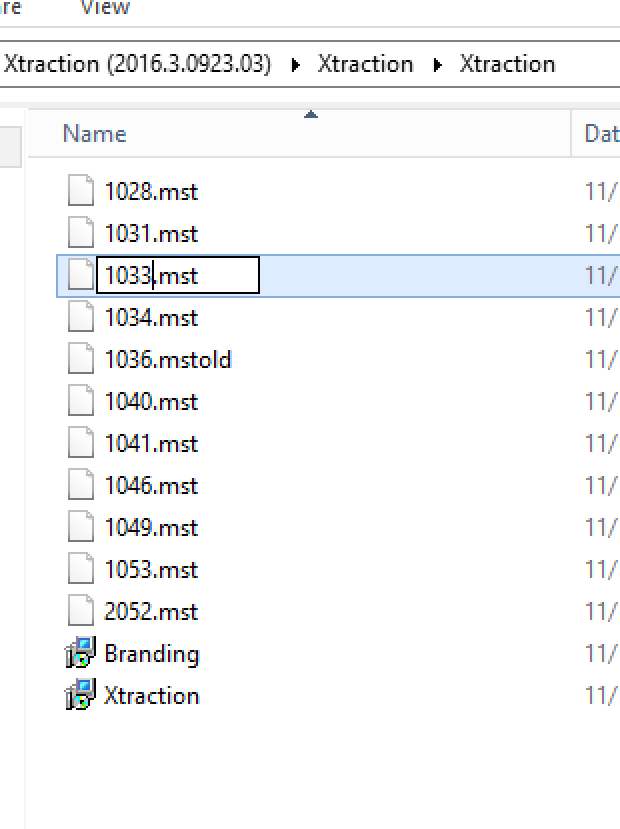
Install Ivanti Xtraction – For servers in EN with FR regional settings, a correction must be made in the installation sources.
Install Ivanti Xtraction – Replace the file 1036.mst with the file 1033.mst
Database
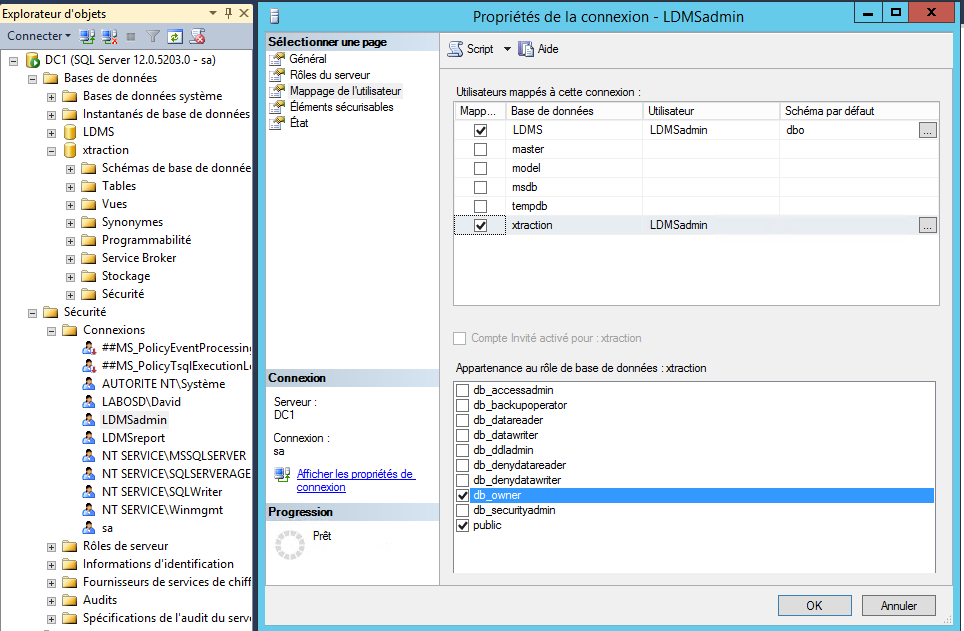
Install Ivanti Xtraction – It is necessary to create an empty database with a db_owner account for the database
Installation
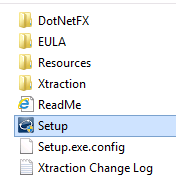
- Start the setup.exe
- Click to « Continue »

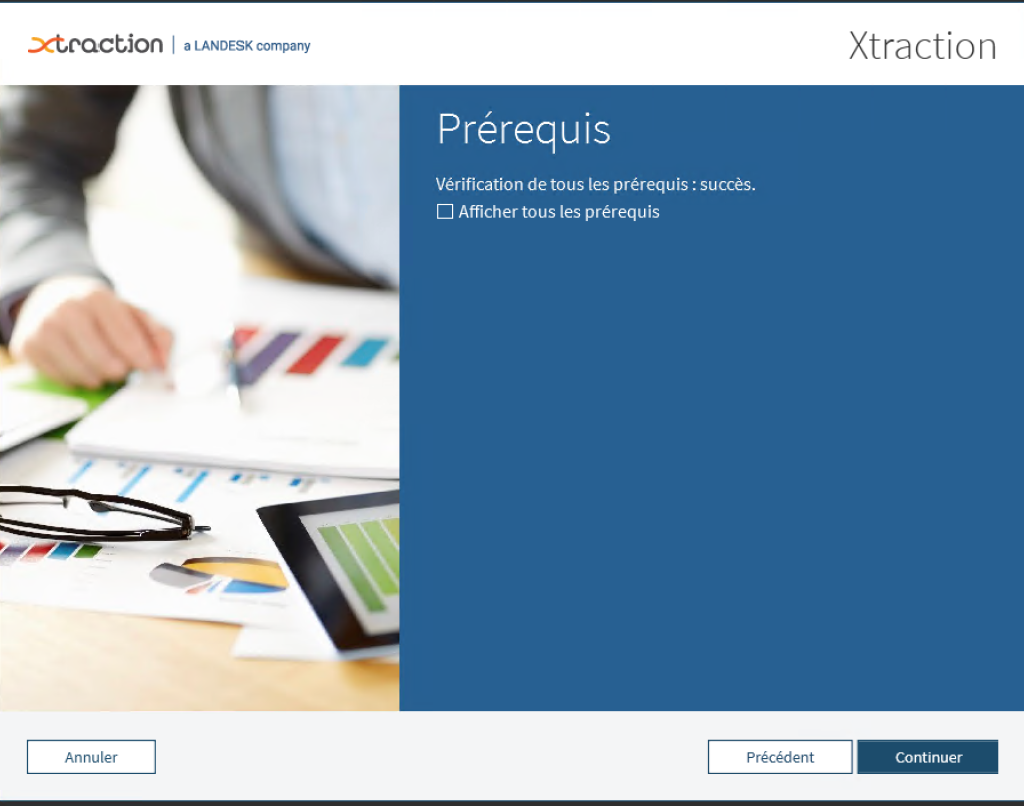
- Install the prerequisites if needed and click on ‘Continue’.
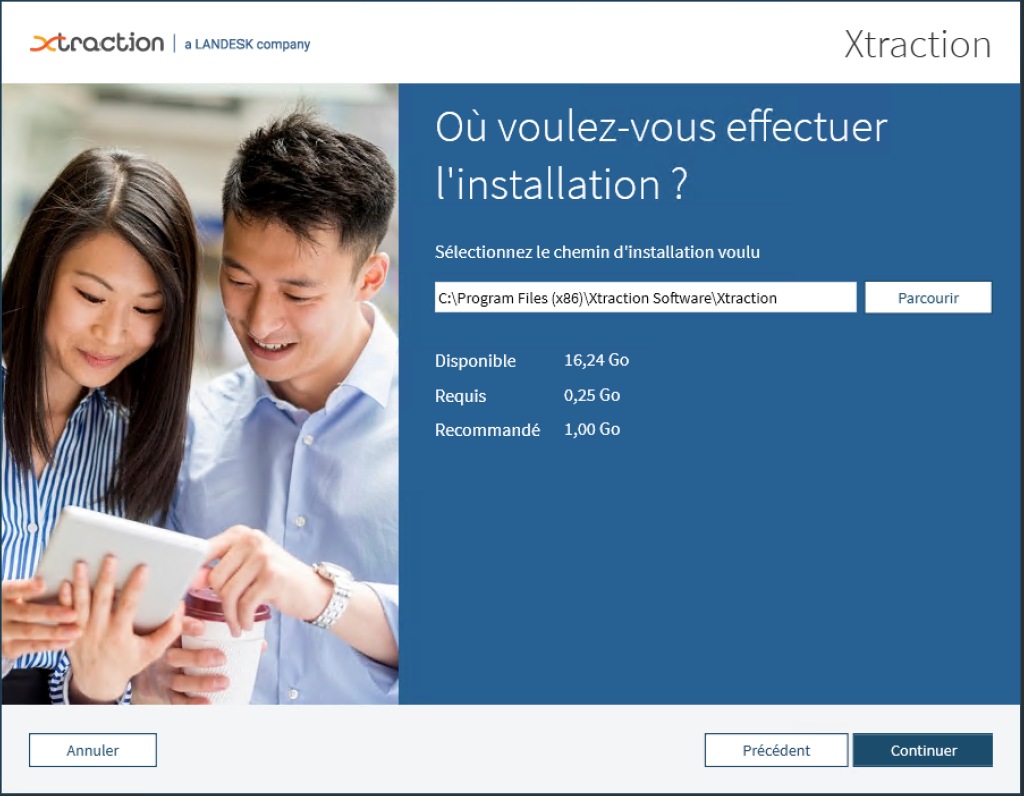
- Specify the installation path and click on ‘Continue’
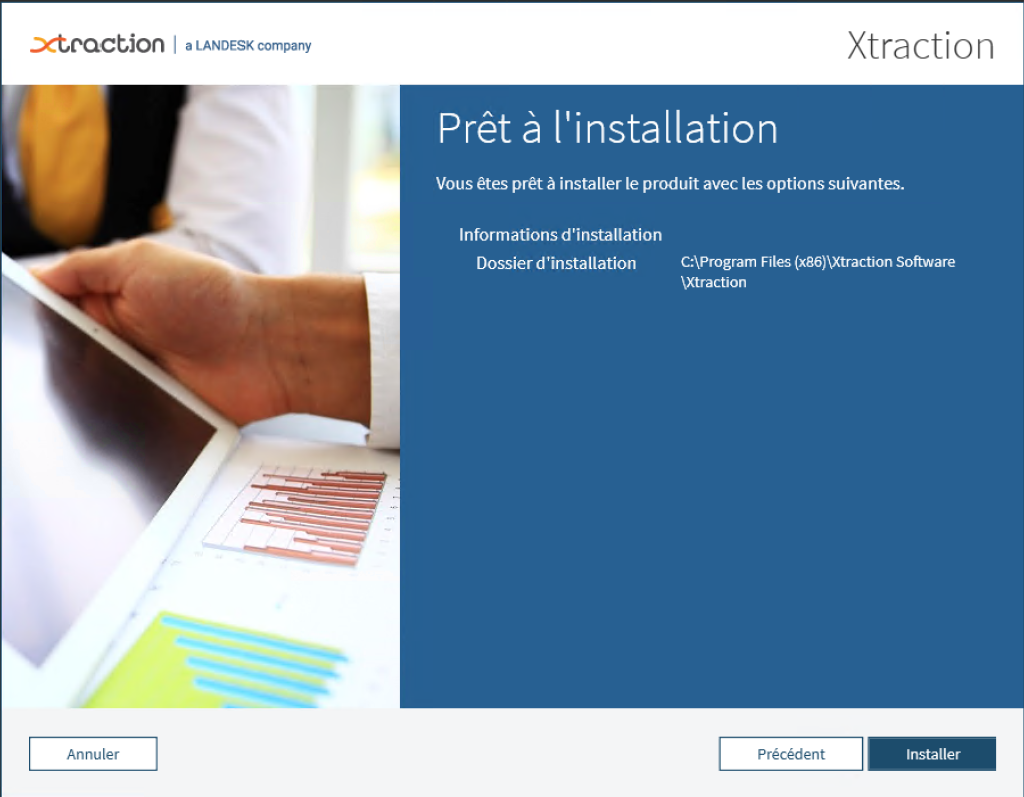
- Click to « install »
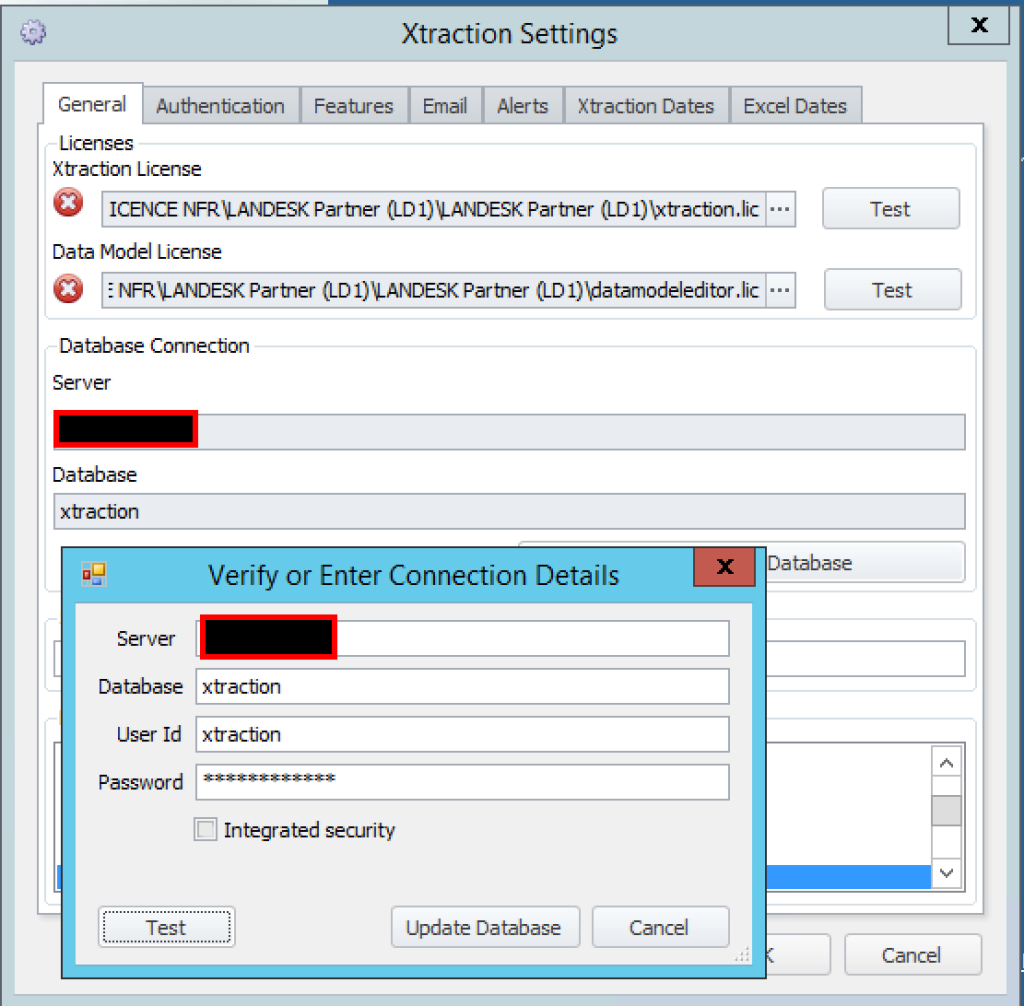
- Specify:
- The 2 license files
- The Xtraction database information
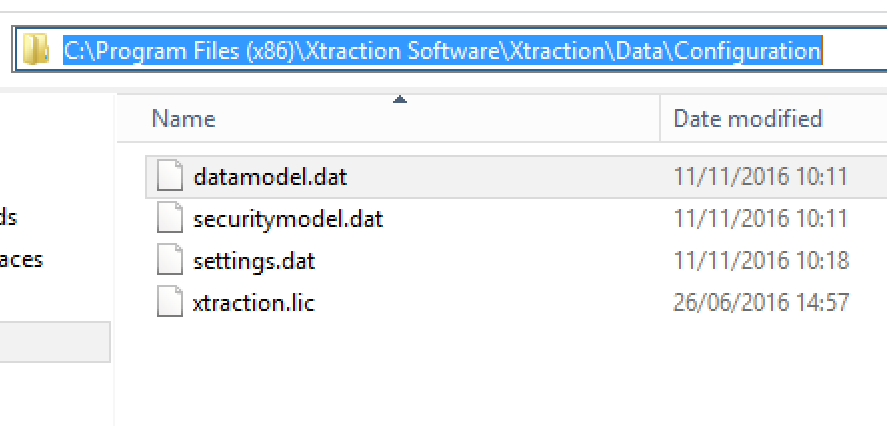
- Replace the datamodele.dat file in the installation path
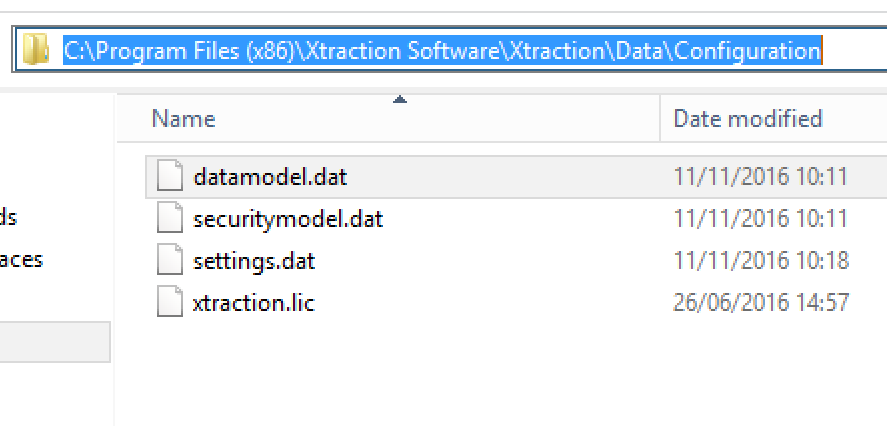
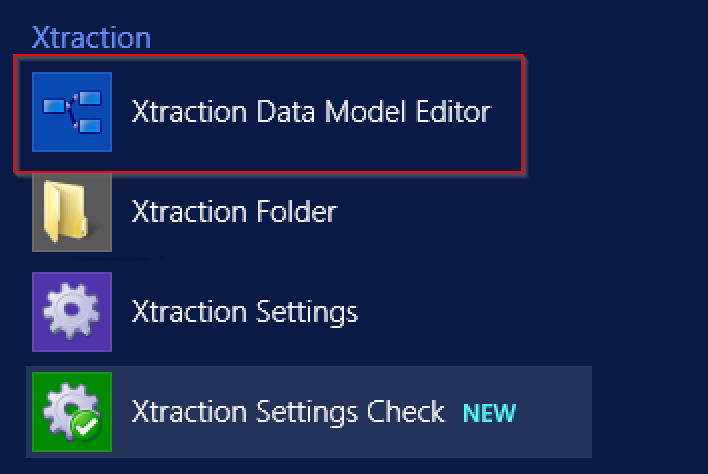
- Launch « Xtraction Data Model Editor »
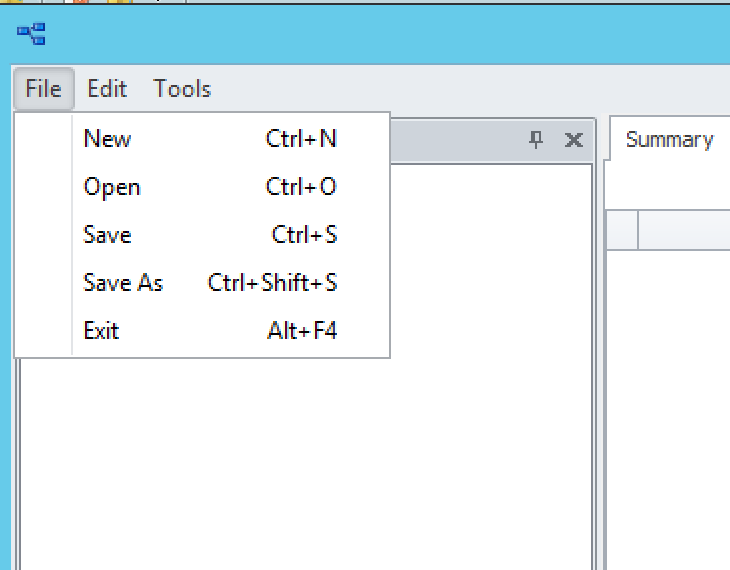
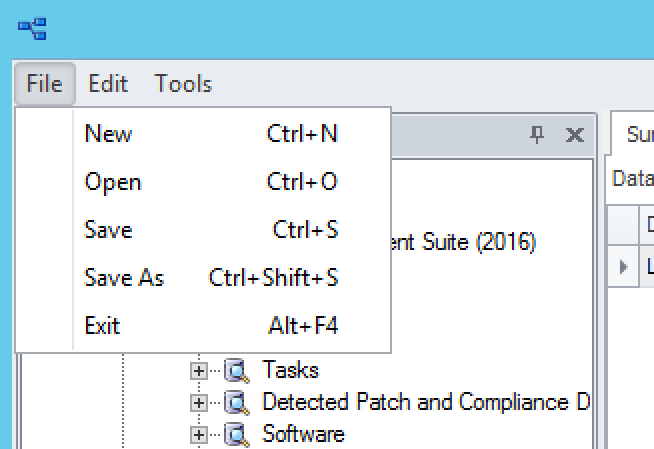
- In the menu, click on ‘Open’
- Ouvrez le fichier datamodele.dat dans le chemin d’installation
- In the datamodel, specify the LDMS database information.
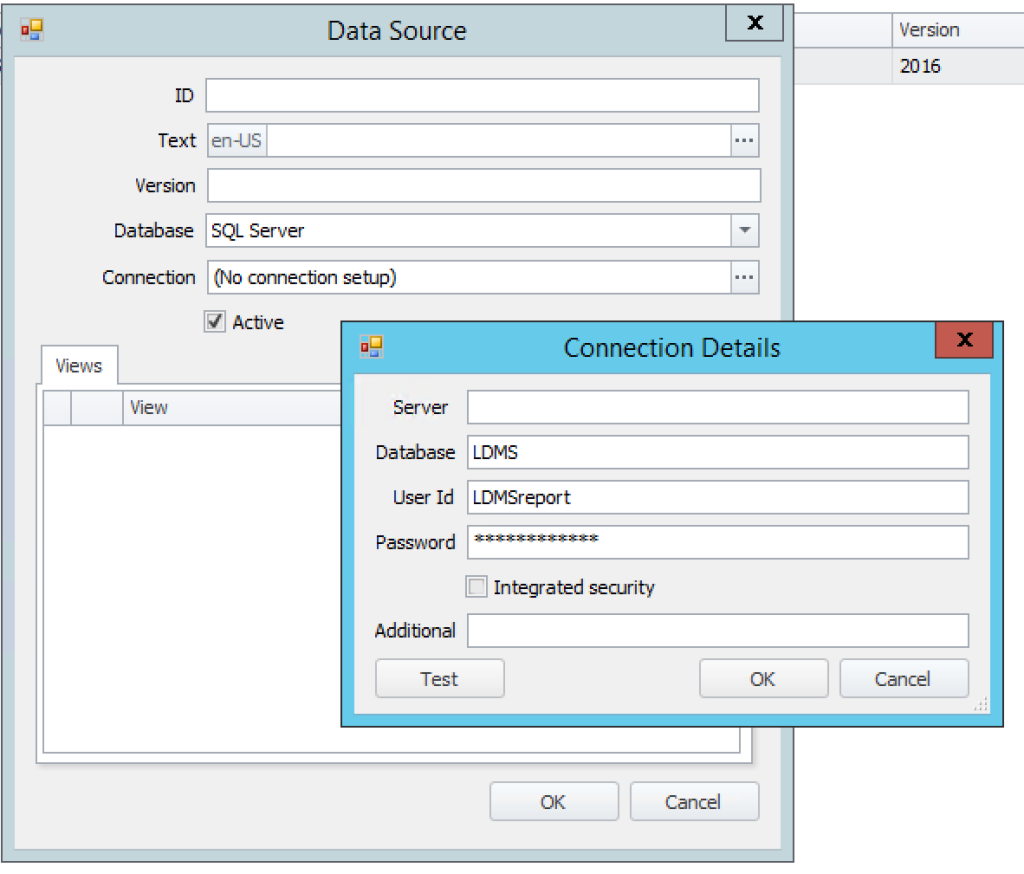
- Save the changes.
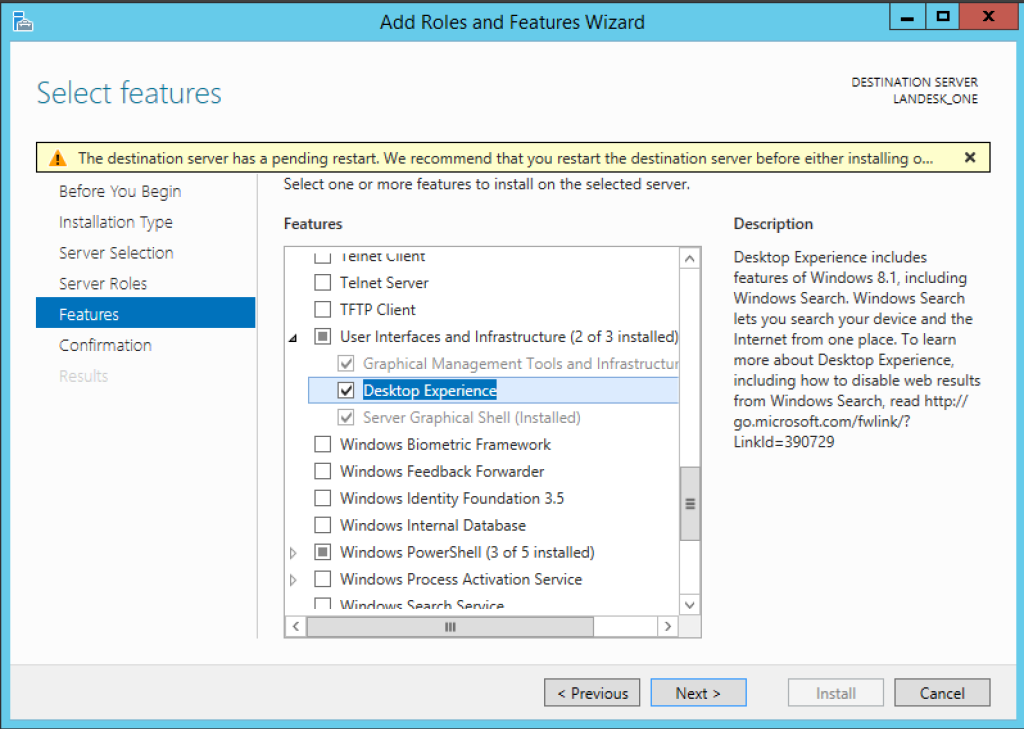
- Install the Windows feature ‘Desktop Experience’
- Enable TLS 1.2
Set-ItemProperty `
    -Path 'HKLM:\SOFTWARE\Wow6432Node\Microsoft\.NetFramework\v4.0.30319' `
    -Name 'SchUseStrongCrypto' `
    -Value 1 `
    -Type DWord

Set-ItemProperty `
    -Path 'HKLM:\SOFTWARE\Microsoft\.NetFramework\v4.0.30319' `
    -Name 'SchUseStrongCrypto' `
    -Value 1 `
    -Type DWord
- Disable Internet Explorer security.
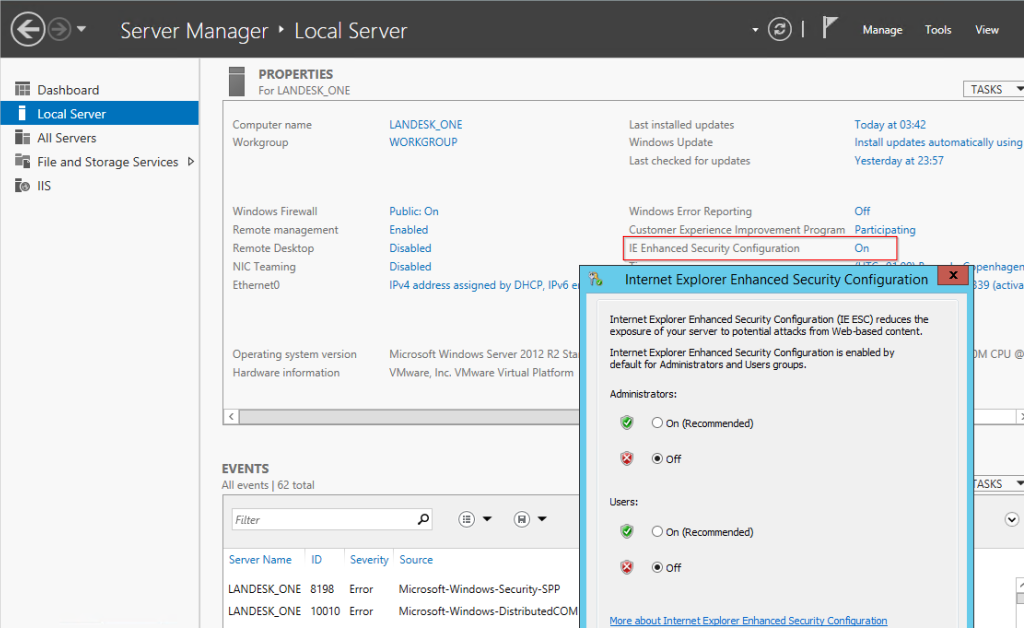
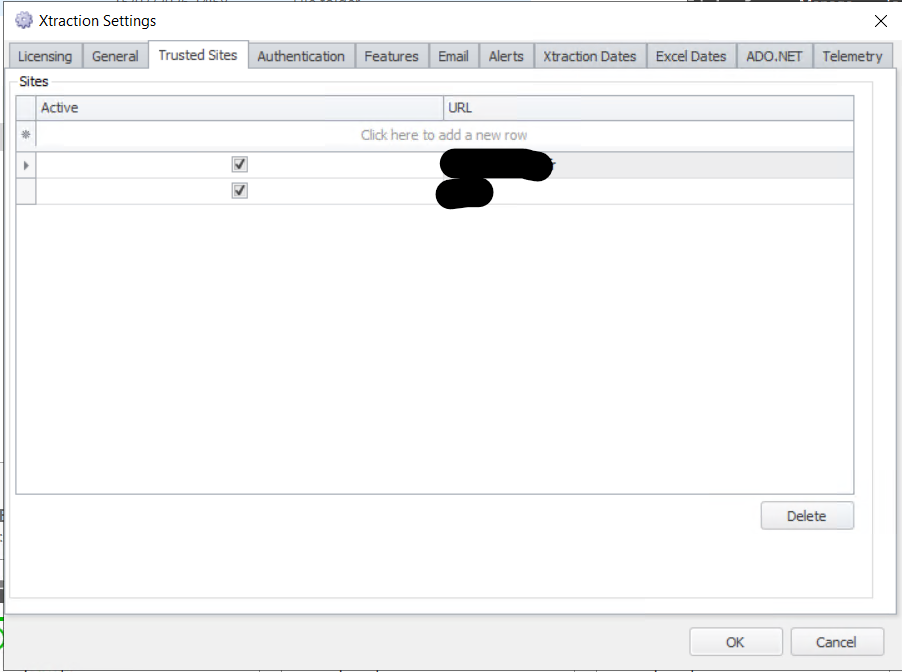
- Trust Site
In Xtraction Setting add Xtaction link to Trustes SIte
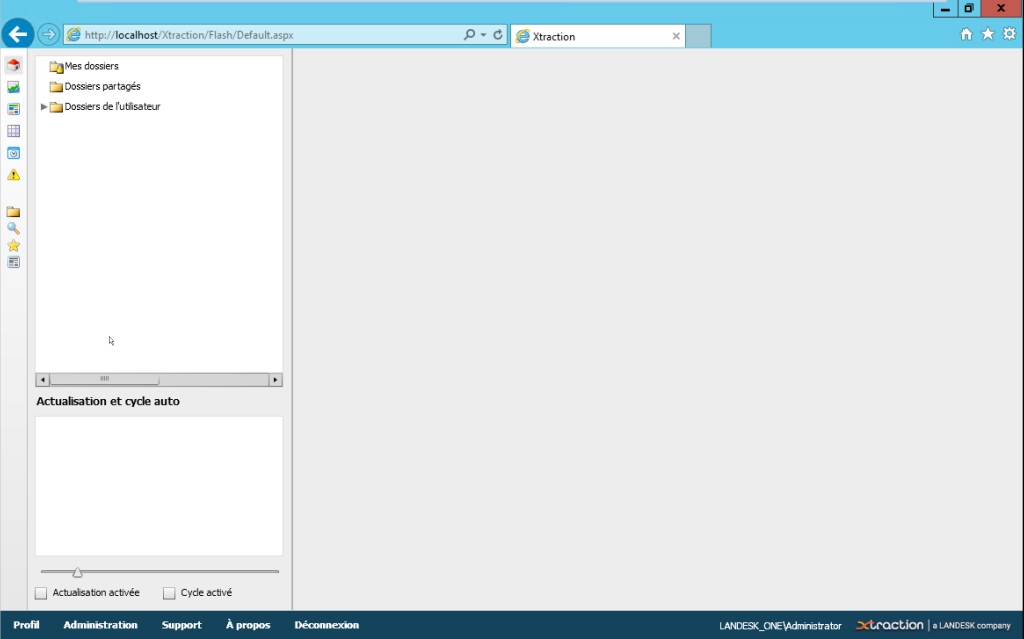
- Launch in the browser http://servername/xtraction
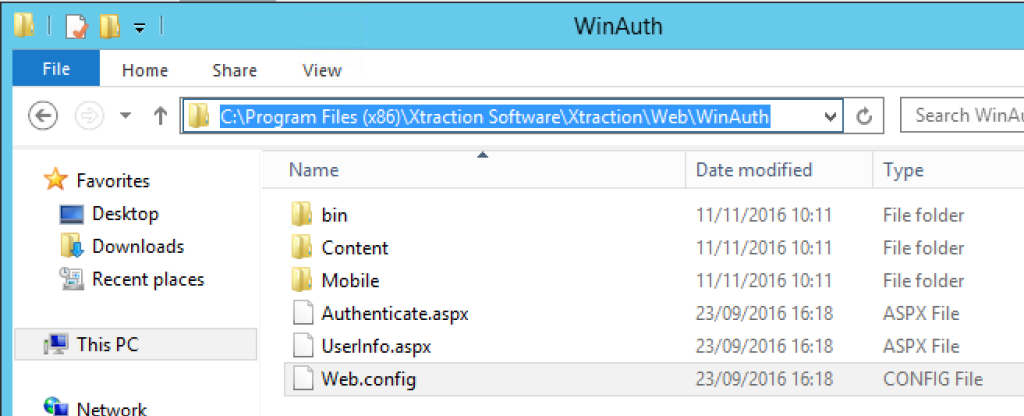
- Edit the web.config file in the installation path.
- Replace the ‘xtractionauth’ section.
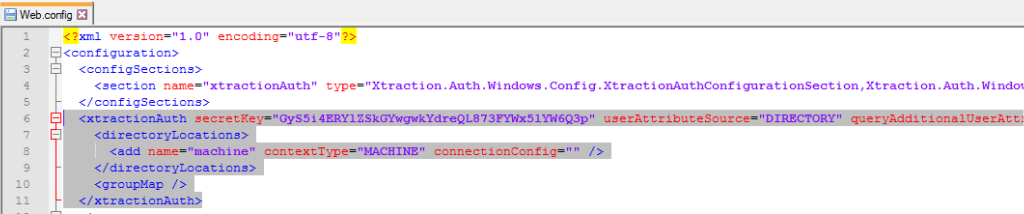
Install Ivanti Xtraction – With this example. DO NOT OVERWRITE the secretkey value.
<xtractionAuth secretKey="GyS5i4ERYlZSkGYwgwkYdreQL873FYWx5lYW6Q3p" userAttributeSource="DIRECTORY" queryAdditionalUserAttributes="true" updateXtraction="true" authenticatedGroups="groupeAD">
 <directoryLocations>
 <add name="domain" contextType="DOMAIN" connectionConfig="mondomain.lan" />
 </directoryLocations>
 <groupMap>
 <add
 name="administrators"
 windowsGroupName="GroupeAD"
 roleIds="1,2"
 featureIds="1,2,3"
 xtractionGroupNames=""
 securityPolicyName="" />
 </groupMap>
 </xtractionAuth>
Install Ivanti Xtraction –
Install Ivanti Xtraction – mondomain.lan = your domain
Install Ivanti Xtraction – GroupeAD = the AD group authorized to connect”
- And execute iireset